
QuickBooks Error 12007: Causes, Symptoms and Easy Fixes 2026
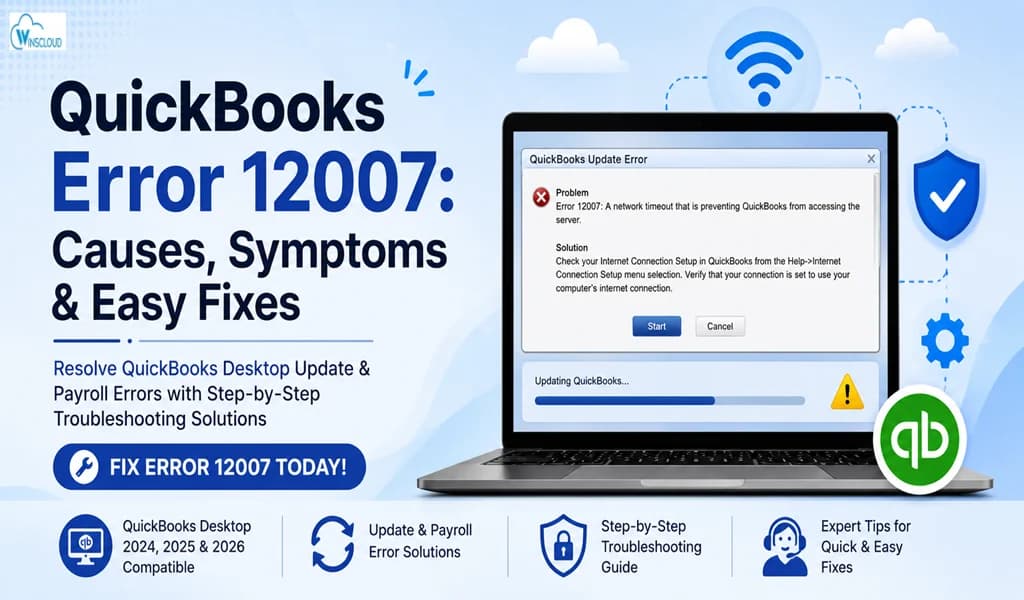
Updating QuickBooks Desktop is essential for maintaining payroll tax tables, security patches, and new features. However, many users encounter QuickBooks Error 12007 while downloading updates or payroll services.
This error generally occurs when QuickBooks cannot establish a secure connection with Intuit’s servers due to internet connectivity problems, firewall restrictions, SSL issues, or incorrect network settings.
In this comprehensive guide, you’ll learn what QuickBooks Error 12007 means, why it happens, how to fix it, and ways to prevent it from occurring in the future.
What is QuickBooks Error 12007?
QuickBooks Error 12007 is an update-related error that appears when QuickBooks Desktop fails to connect to the internet while downloading software updates or payroll updates.
The error typically displays one of these messages: Error 12007: A network timeout that is preventing QuickBooks from accessing the server.
or QuickBooks has encountered an issue while downloading updates.

Unlike installation errors, Error 12007 is primarily related to internet communication between QuickBooks Desktop and Intuit servers.
Also Read: QuickBooks Error 2727: Causes, Symptoms, and Proven Solutions to Fix It in 2026
When Does QuickBooks Error 12007 Occur?
Users commonly encounter this error while:
- Updating QuickBooks Desktop
- Downloading payroll updates
- Activating payroll services
- Registering QuickBooks
- Accessing online services
- Verifying software license
- Downloading maintenance releases
Symptoms of QuickBooks Update Error 12007
If you’re experiencing QuickBooks Update Error 12007, you may notice:
- QuickBooks update fails midway
- Payroll update cannot be completed
- Slow application performance
- Internet-dependent features stop working
- Windows becomes sluggish
- Frequent update timeout errors
- Unable to connect to Intuit servers
- QuickBooks freezes while updating
What Causes QuickBooks Error 12007?
Several factors can trigger this error.
1. Poor Internet Connection: An unstable or slow internet connection interrupts communication with Intuit’s update servers.
2. Firewall Blocking QuickBooks: Windows Firewall or third-party antivirus software may block QuickBooks update services.
3. Incorrect SSL Settings: QuickBooks relies on SSL security protocols. Disabled SSL settings can prevent secure communication.
4. Internet Explorer Configuration Issues: Even though QuickBooks uses its own interface, it still depends on Windows Internet settings.
5. DNS Resolution Problems: If Windows cannot resolve Intuit’s server addresses correctly, updates fail.
6. Proxy Server Restrictions: A proxy server may prevent QuickBooks from accessing update servers.
7. Damaged Windows Components :Corrupted Windows networking files can interrupt update downloads.
8. Antivirus Interference: Security software may incorrectly identify QuickBooks update services as suspicious.
How to Fix QuickBooks Error 12007?
Solution 1: Verify Your Internet Connection
Before changing any settings:
- Open a web browser.
- Visit several websites.
- Run an internet speed test.
- Restart your modem or router if necessary.
- Try updating QuickBooks again.
Solution 2: Update Internet Explorer Settings
Although Microsoft has retired Internet Explorer, QuickBooks Desktop still uses Windows Internet Options.
Steps:
- Open Control Panel.
- Select Internet Options.
- Open the Advanced tab.
- Scroll to Security.
- Enable:
- Use SSL 2.0
- Use SSL 3.0
- Use TLS 1.2
- Click Apply.
- Restart your computer.
Solution 3: Check Firewall Settings
Temporarily disable Windows Firewall.
Then:
- Open QuickBooks.
- Run the update again.
If the update succeeds:
- Add QuickBooks as an exception.
- Re-enable Firewall.
Important QuickBooks executable files include:
- QBW32.exe
- QBUpdate.exe
- QBDBMgrN.exe
- FileManagement.exe
Also Read: Fix QuickBooks Error PS038 Payroll Update Issue
Solution 4: Configure Antivirus Software
Your antivirus software may block:
- QBUpdate.exe
- QBW32.exe
Whitelist these files in your antivirus program. After making changes:
- Restart the computer.
- Retry the update.
Solution 5: Reset QuickBooks Update
Resetting the update cache often fixes corrupted downloads.
- Open QuickBooks.
- Select Help.
- Choose Update QuickBooks Desktop.
- Click Options.
- Select Mark All.
- Click Save.
- Open the Update Now tab.
- Check Reset Update.
- Select Get Updates.
Restart QuickBooks after the download finishes.
Solution 6: Verify Internet Connection Within QuickBooks
- Open QuickBooks.
- Go to Help.
- Choose Internet Connection Setup.
- Select:
Use my computer’s Internet connection settings. Click Next and save the settings.
Solution 7: Flush DNS Cache
DNS problems frequently trigger update errors.
- Open Command Prompt as Administrator.
- Run:
- ipconfig /flushdns
- Restart your computer.
- Retry the QuickBooks update.
Solution 8: Restart Windows Networking Services
Restart the following services:
- DNS Client
- DHCP Client
- Network Connections
- TCP/IP NetBIOS Helper
After restarting:
- Reboot Windows.
- Open QuickBooks.
- Download updates again.
Solution 9: Install Windows Updates
Outdated Windows components may cause update failures.
- Open: Settings → Windows Update
- Install all available updates.
- Restart your computer.
Solution 10: Repair QuickBooks Desktop
If program files are damaged:
- Open Control Panel.
- Select Programs.
- Click Programs and Features.
- Choose QuickBooks.
- Select Uninstall/Change.
- Click Repair.
- Restart Windows.
Solution 11: Run QuickBooks Tool Hub
QuickBooks Tool Hub helps resolve common update and connectivity issues.
- Download the latest QuickBooks Tool Hub.
- Install it.
- Open Tool Hub.
- Select Program Problems.
- Run Quick Fix my Program.
- Restart QuickBooks.
Solution 12: Perform a Clean Installation
If nothing works:
- Uninstall QuickBooks.
- Rename installation folders.
- Reinstall QuickBooks Desktop.
- Install the latest updates.
This resolves severe installation corruption.
How to Prevent QuickBooks Error 12007
Follow these best practices:
- Keep QuickBooks updated.
- Install Windows updates regularly.
- Maintain a stable internet connection.
- Keep firewall exceptions updated.
- Avoid aggressive antivirus settings.
- Regularly clear temporary files.
- Use reliable DNS servers.
- Restart networking equipment periodically.
QuickBooks Error 12007 vs Error 12029
| Feature | Error 12007 | Error 12029 |
| Primary Cause | Internet connectivity | Server timeout |
| Update Failure | Yes | Yes |
| Payroll Impact | Yes | Yes |
| Firewall Issue | Common | Common |
| SSL Settings | Important | Important |
| Network Timeout | Sometimes | Very Common |
Frequently Asked Questions
Is QuickBooks Error 12007 a payroll error?
It can occur while downloading payroll updates, but it is primarily a network connectivity and update error.
Does Error 12007 affect QuickBooks Desktop?
Yes. This error mainly affects QuickBooks Desktop when downloading software or payroll updates.
Can antivirus software cause QuickBooks Error 12007?
Yes. Many antivirus programs block QuickBooks update services, preventing communication with Intuit servers.
Can I continue using QuickBooks after Error 12007?
Yes. Existing company files remain accessible, but online services and updates may not function until the issue is resolved.
Does reinstalling QuickBooks fix Error 12007?
Only if the problem is caused by corrupted QuickBooks installation files. Network and firewall issues should be ruled out first.
Final Thoughts
QuickBooks Error 12007 is a common update and connectivity issue that prevents QuickBooks Desktop from communicating with Intuit’s servers. In most cases, the error can be resolved by checking your internet connection, updating Windows Internet settings, configuring your firewall and antivirus, resetting QuickBooks updates, or repairing the software.
If the issue persists after trying all troubleshooting steps, consider using a professionally managed QuickBooks Desktop hosting environment. A hosted setup minimizes local network and system configuration issues by providing secure, optimized access to QuickBooks, automatic updates, enterprise-grade security, and expert technical support helping reduce downtime and improve productivity.