
QuickBooks Error 15270: Causes, Symptoms, and Solutions
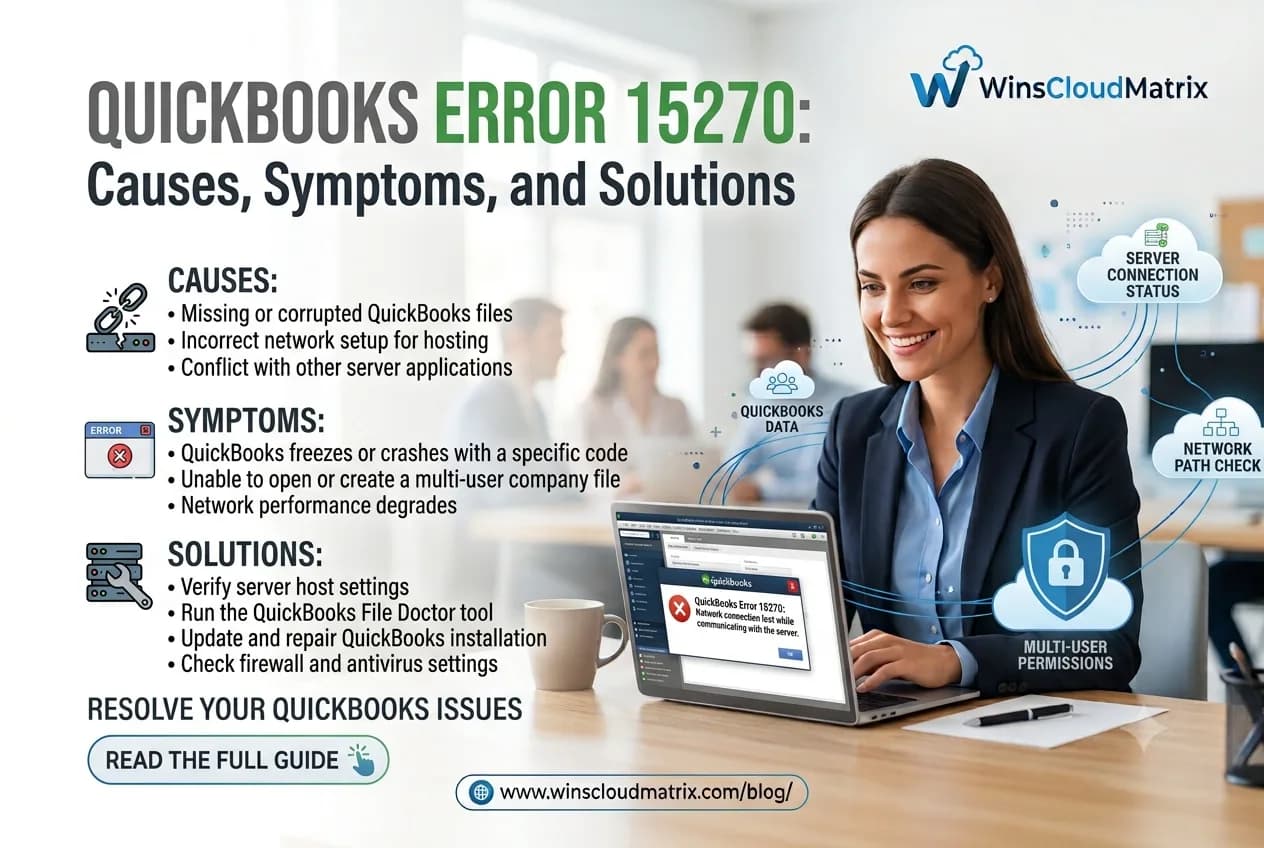
QuickBooks Error 15270
QuickBooks Desktop helps businesses manage payroll, invoices, expenses, and accounting tasks, but an update problem can interrupt normal work. One common issue is QuickBooks Error 15270. This error is usually associated with an incomplete QuickBooks or payroll update and may appear when the software cannot complete the update process correctly.
If you are seeing Error 15270 while updating QuickBooks Desktop or downloading a payroll update, there is no need to panic. In many cases, the problem can be resolved by checking the update settings, running QuickBooks with administrator permissions, reviewing security software and QuickBooks Hosting for CPA Firms, or resetting the update process.
What Is QuickBooks Error 15270? How to Solve It?
QuickBooks Error 15270 is an update related error that can occur when QuickBooks Desktop or QuickBooks Payroll cannot complete a required update. Intuit currently groups Error 15270 with other 15279 etc errors that can occur while updating QuickBooks Desktop or downloading payroll updates.
The problem may be related to a missing update component, firewall or internet security settings, damaged Windows files, the QuickBooks File Copy Service or QuickBooks Enterprise Hosting Provider, or an issue verifying digital signatures.
For businesses that rely on QuickBooks for payroll, an update error can be especially inconvenient because current payroll information and updates may be required for normal processing.
Common Symptoms of QuickBooks Error 15270
You may notice one or more of these signs when Error 15270 occurs: and how can any User solve this instead of help.
- QuickBooks displays an error message during an update.
- A payroll update does not finish successfully.
- QuickBooks repeatedly asks you to install the same update.
- The update process stops before completion.
- QuickBooks may ask you to restart the application after an unsuccessful update.
What Reasons Causes QuickBooks Error 15270?
Understanding the cause can make troubleshooting easier. Some of the common reasons include:
1. Incomplete QuickBooks Update
If an update was interrupted because of a system restart, connection problem, or another issue, QuickBooks may not have all the files it needs to complete the installation.
2. Firewall or Security Software
Windows Firewall, antivirus programs, or other internet security applications can sometimes interfere with QuickBooks update services. Intuit specifically lists firewall and security settings among the areas to check for 15270 update errors with QuickBooks Cloud Hosting.
3. QuickBooks File Copy Service Problems
The QuickBooks File Copy Service, or FCS, is involved in the update process. If the service is disabled or not working properly, QuickBooks may have trouble completing an update.
4. Missing or Damaged Update Files
A missing component or damaged Windows file can prevent an update from installing correctly. In QuickBooks, this usually means the application is unable to read, access, or authenticate the company file because of:
5. Problems Verifying Digital Signatures
QuickBooks updates may require digital signature verification. If Windows cannot verify the required files, the update may fail.
Before You Start Troubleshooting
If QuickBooks is currently working with your company file, save your work and close the application before changing update settings. Keep a recent backup available, especially if payroll or other financial records are involved. Also note the exact error message and when it appears. This information can help you or your IT support team determine whether the issue is limited to an update, payroll download, or the wider QuickBooks installation.
How to Fix QuickBooks Error 15270
Before making major changes, create a backup of your QuickBooks company file. Then try the following solutions in order.
Solution 1: Run QuickBooks as Administrator
Running QuickBooks with administrator permissions can help when Windows permissions are preventing an update from being installed.
- Close QuickBooks Desktop.
- Right click the QuickBooks Desktop icon.
- Select Run as administrator.
- If Windows asks for permission, select Yes.
- Try the QuickBooks update again.
Intuit also recommends running QuickBooks as an administrator as part of troubleshooting certain Desktop update errors.
Solution 2: Update QuickBooks Desktop Manually
- Open QuickBooks Desktop.
- Go to Help and select Update QuickBooks Desktop.
- Open the Update Now tab.
- Select Get Updates.
- Once the download finishes, restart QuickBooks.
- If QuickBooks asks you to install the update, accept the installation.
If the update fails again, continue with the next steps instead of repeatedly attempting the same installation.
Solution 3: Check Firewall and Internet Security Settings
A firewall or antivirus program may block the connections QuickBooks needs to download updates. Check whether your security software is restricting QuickBooks.
Make sure QuickBooks Desktop and its update related services are allowed through Windows Firewall. If you use third party antivirus or internet security software review its application permissions as well.
Do not permanently disable security protection just to install an update. If you are unsure which setting needs to be changed ask your IT administrator or security software provider for assistance.
Intuit specifically recommends checking internet security, firewall settings, and related applications when troubleshooting 15XXX update errors.
Solution 4: Reset QuickBooks Update
A reset can help when the existing update download is incomplete or stuck.
- Open QuickBooks Desktop.
- Go to Help and select Update QuickBooks Desktop.
- Choose the Update Now tab.
- Select Reset Update.
- Click Get Updates again.
- Restart QuickBooks and try the update.
Solution 5: Check the QuickBooks File Copy Service
If the QuickBooks File Copy Service is disabled, it can interfere with Desktop updates. Check the service in Windows Services and make sure it is available and running.
If you are not comfortable changing Windows services, it is better to ask a qualified technician for help. Incorrect changes to Windows services can affect other applications.
Solution 6: Install QuickBooks Updates in Selective Startup
If another application is interfering with the update, installing QuickBooks in Windows Selective Startup mode may help. Intuit lists reinstalling QuickBooks in Selective Startup as an additional troubleshooting option for 15270 update errors.
This step is more advanced than the previous solutions. If QuickBooks is installed on a business network or used by several employees, check with your IT administrator before changing Windows startup settings.
Solution 7: Use QuickBooks Tool Hub
QuickBooks Tool Hub includes tools for troubleshooting common Desktop problems. If the update issue continues, using the appropriate Tool Hub tools may help identify or repair program related problems.
- Download the latest QuickBooks Tool Hub from Intuit.
- Install and open the tool.
- Review the available troubleshooting options.
- Run the tool that matches the problem you are experiencing.
- Restart QuickBooks and try the update again.
When Should You Contact a QuickBooks Professional?
If Error 15270 continues after you have tried the basic troubleshooting steps, the problem may involve Windows settings, security software, damaged installation files, or a more complicated network configuration.
Professional help can be useful when:
- QuickBooks is installed on a server or hosted environment.
- Several users are experiencing the same update problem.
- Payroll updates repeatedly fail.
- QuickBooks stops responding during the update.
- The error returns after every restart.
- You are concerned about changing Windows or security settings.
Avoid deleting QuickBooks files or changing system settings without knowing what they do. A wrong change can create additional problems or affect access to your accounting data.
How to Prevent QuickBooks Update Errors
Keeping QuickBooks and Windows updated can reduce update related problems. It is also a good practice to maintain regular company file backups and keep your security software configured correctly.
For businesses using QuickBooks Desktop in a multi user or hosted environment, make sure the network and server configuration is maintained properly. If payroll is an important part of your daily operation, schedule updates at a suitable time so an unexpected restart or update issue does not interrupt payroll processing.
Final Thoughts
QuickBooks Error 15270 can be frustrating, particularly when you need to complete a payroll or accounting task. However, it is generally an update related issue and can often be addressed by checking administrator permissions, resetting the QuickBooks update, reviewing firewall and security settings, and ensuring the required QuickBooks services are working correctly.
If the error continues, avoid repeated trial and error changes to your system. A qualified QuickBooks technician can review the installation, Windows environment, security settings, and network configuration to identify the underlying problem and help you get back to normal operations.
Read More:- Popular Tax Hosting Providers