

QuickBooks Multi User Mode Not Working: Guide to Diagnose & Fix
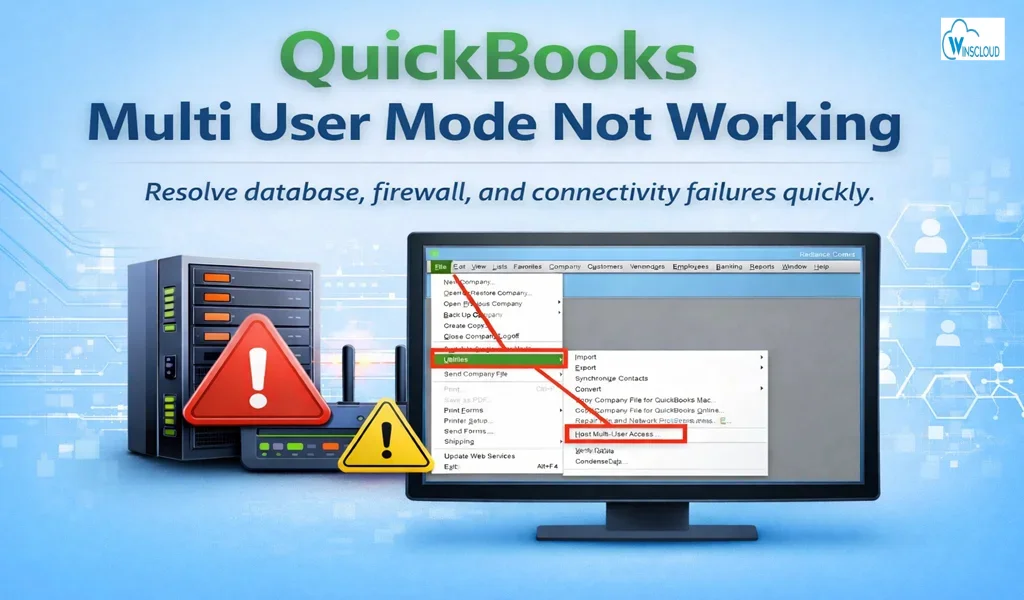
When QuickBooks multi user mode not working issues arise, they typically point to network configuration faults, database service failures, or corrupted company files. In multi-user architecture, QuickBooks Desktop relies on a host computer running QuickBooks Database Server Manager to coordinate concurrent access to the .QBW file. Any interruption in that communication layer triggers a QuickBooks multi user mode error.
This guide provides a structured troubleshooting workflow from a technical perspective.
Understanding QuickBooks Desktop Multi User Mode
In QuickBooks desktop multi user mode, one system acts as the host (server), and workstations connect over a local network (LAN). The communication occurs through:

- QuickBooks Database Server Manager (QBDBMgrN)
- Network Data file (.ND)
- Transaction Log file (.TLG)
- Specific firewall ports (varies by version)
- Windows services permissions
If any of these components fail, QuickBooks throws errors like:
- QuickBooks Error H202
- H505
- H303
- H101
These are collectively categorized as QuickBooks multi user mode not working error (H-series errors).
Root Causes of QuickBooks Multi User Mode Not Working
Below are the most common technical causes of QuickBooks multi user mode not working issues
1. Hosting Configuration Misconfigured
Multiple systems set to host multi-user mode.
Correct setup: Only the server should host. Workstations must disable hosting.
2. QuickBooks Database Server Manager Not Running
The service QBDBMgrN must be active.
Check:
- services.msc
- Status: Running
- Startup Type: Automatic
3. Damaged .ND File
The Network Data (.ND) file stores connectivity info. If corrupted, QuickBooks cannot locate the company file.
4. Firewall or Antivirus Blocking Ports
QuickBooks uses dynamic ports depending on the version (e.g., 8019, 56728–56730). If blocked, communication fails.
5. DNS or Network Resolution Failure
Incorrect IP configuration or DNS mapping prevents workstation-to-server communication.
6. Company File Stored Incorrectly
File must reside:
- On local server drive (not mapped external drive)
- In a shared folder with full control permissions
6 Steps to Fix QuickBooks Multi User Mode Not Working Error
Step 1: Verify Hosting Settings
On Server: File → Utilities → Host Multi-User Access
On Workstations: File → Utilities → Stop Hosting Multi-User Access
If hosting appears enabled on multiple systems, disable it everywhere except the server.
Step 2: Restart QuickBooks Services
- Press Windows + R
- Type services.msc
- Restart:
- QuickBooksDBXX
- QBCFMonitorService
Ensure both are set to Automatic.
Step 3: Use QuickBooks Tool Hub
Download and install QuickBooks Tool Hub to fix QuickBooks multi user mode not working.
Inside Tool Hub: Network Issues → QuickBooks Database Server Manager → Scan Folder
This rebuilds the .ND file and reconfigures network connectivity.
Step 4: Check Firewall Configuration
Allow the following:
- QuickBooks executable files
- Database Server Manager
- Required ports (version-specific)
Create inbound and outbound rules if necessary.
Step 5: Rename the .ND and .TLG Files
On the server:
- Locate company file folder
Rename: companyfile.qbw.nd → companyfile.qbw.nd.old
companyfile.qbw.tlg → companyfile.qbw.tlg.old
- Rescan using Database Server Manager
Step 6: Verify Folder Permissions
Ensure shared folder has:
- Full Control
- Read/Write access
- Proper Windows user permissions
Advanced Network-Level Diagnostics
For IT administrators:
Ping Test
ping ServerName
Check DNS Resolution
nslookup ServerName
Check Port Listening Status
netstat -an | find “8019”
If the port is not listening, Database Server Manager is not configured properly.
When to Reinstall QuickBooks Desktop
- Services repeatedly fail
- Multi-user mode crashes after enabling
- Tool Hub repair fails
Then perform:
- Clean uninstall
- Rename installation folders
- Fresh install of QuickBooks Desktop
- Reconfigure Database Server Manager
Preventive Measures
To avoid recurring QuickBooks multi user mode not working error:
- Keep QuickBooks updated
- Assign static IP to server
- Regularly verify data (File → Utilities → Verify Data)
- Exclude QuickBooks folders from antivirus scanning
- Maintain stable LAN connection
Final Thoughts
If QuickBooks multi user mode not working, the issue is almost always network-related rather than file corruption. A systematic approach checking hosting configuration, services, firewall, and .ND file integrity resolves most cases within 30–45 minutes.
For businesses dependent on uninterrupted accounting workflows, contact Winscloud Matrix for QuickBooks Hosting, proactive network configuration and regular system audits are essential.
Frequently Asked Questions
How to keep QuickBooks in multi-user mode?
To keep QuickBooks desktop multi user mode active:
- Open QuickBooks Desktop on the server computer.
- Go to File → Utilities → Host Multi-User Access.
- On all other computers, select Stop Hosting Multi-User Access.
- Ensure these services are running on the server:
- QuickBooksDBXX
- QBCFMonitorService
- Store the company file on the server’s local drive in a shared folder with full permissions.
If multi-user mode turns off automatically, it usually indicates:
- Incorrect hosting setup
- Database service stopped
- Firewall blocking QuickBooks ports
Most “QuickBooks multi user mode not working” issues are configuration-related.
How to use QuickBooks with multiple users?
To use QuickBooks with multiple users:
- Install QuickBooks Desktop on all systems.
- Install QuickBooks Database Server Manager on the server.
- Save the company file (.QBW) on the server.
- Share the folder with full read/write access.
- Create separate user accounts under:
Company → Set Up Users and Passwords - Workstations should open the file via:
Open or Restore Company → Network Location
This setup enables simultaneous access without file corruption.
Is there an issue with QuickBooks right now?
Most multi-user problems are not global outages. Intuit QuickBooks Desktop runs on your local network. If multi-user mode is not working, the issue is usually firewall blocking, stopped database services, damaged .ND files, or incorrect hosting configuration rather than a nationwide system failure.
Why is QuickBooks so slow in multi-user mode?
QuickBooks slows down in multi-user mode due to large company files, weak network connections, low server RAM, antivirus interference, or improper hosting setup. Use a wired Gigabit connection, SSD storage, 16GB+ RAM on the server, and exclude QuickBooks folders from antivirus scanning to improve performance and stability.