

How to Backup and Restore Client Files in ProSeries?
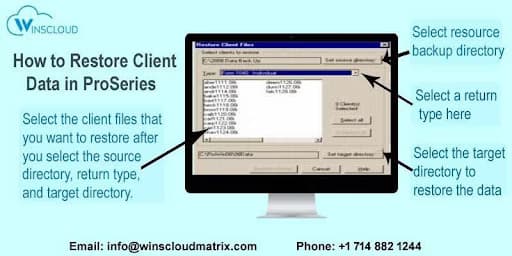
To restore client data file in ProSeries, you need to navigate to the File menu, select Client File Maintenance, then choose Restore. After that, you’ll specify the location of your backup files and select the client files you want to restore.

Simple Steps to Restoring Client Data Files Using ProSeries
Step 1: Open the ProSeries application on your computer.
Step 2: Go to File → Client File Maintenance → Restore.
Step 3: Click Set Source Directory and choose the folder containing your backup files.
Step 4: Select the type of tax return you want to restore (e.g., 1040, 1120, etc)
Step 5: Pick individual client files or click Select All to restore every file in the backup.
Step 6: By default, ProSeries restores to your ProSeries data folder.
Step 7: To change this location, click Set Target Directory and choose a different folder.
Step 8: Click Restore Client(s) to start restoring the selected files.
Step 9: After restoration, check your HomeBase to ensure the restored files are accessible.
Tip: To check your current data storage location, click Cancel, then go to File → Change Directory and review the path under Current Year Client Files.
Note: During restoration, ProSeries may temporarily display “Not Responding.” This is normal. The duration depends on the number of files and your system’s performance.
Also Read: QuickBooks Has Stopped Working: How to Fix This Error?
Conclusion
Regularly backing up and restoring client files in ProSeries is essential for safeguarding sensitive tax data and ensuring business continuity. By maintaining a proper backup routine, you can prevent data loss caused by system errors, hardware failures, or unexpected issues.
ProSeries offers a simple and reliable way to create backups and restore client files, helping tax professionals work with confidence and efficiency. Implementing these best practices not only protects your clients’ information but also enhances the security and reliability of your tax preparation process. Our support team is available 24/7 to help you restore your client file using ProsSeries functionality without delays or call at +1 714-882-1244.