
Fixing QuickBooks Error 6123 (Error 6123 0 in QuickBooks Desktop)
QuickBooks Error 6123 particularly Error 6123 0 QuickBooks Desktop is one of the most common and disruptive issues for accountants and business admins who rely on QuickBooks Desktop for daily financial operations. This error typically appears when QuickBooks fails to open, restore, or upgrade a company file, often halting work and delaying critical tasks.
In this blog, we’ll analyze real world causes, cover why the error happens, and provide step-by-step fixes that go beyond what many competitor support articles deliver. We also include admin-level context that’s missing elsewhere such as processor compatibility checks and environmental considerations that often go unmentioned.
What Is QuickBooks Error 6123?
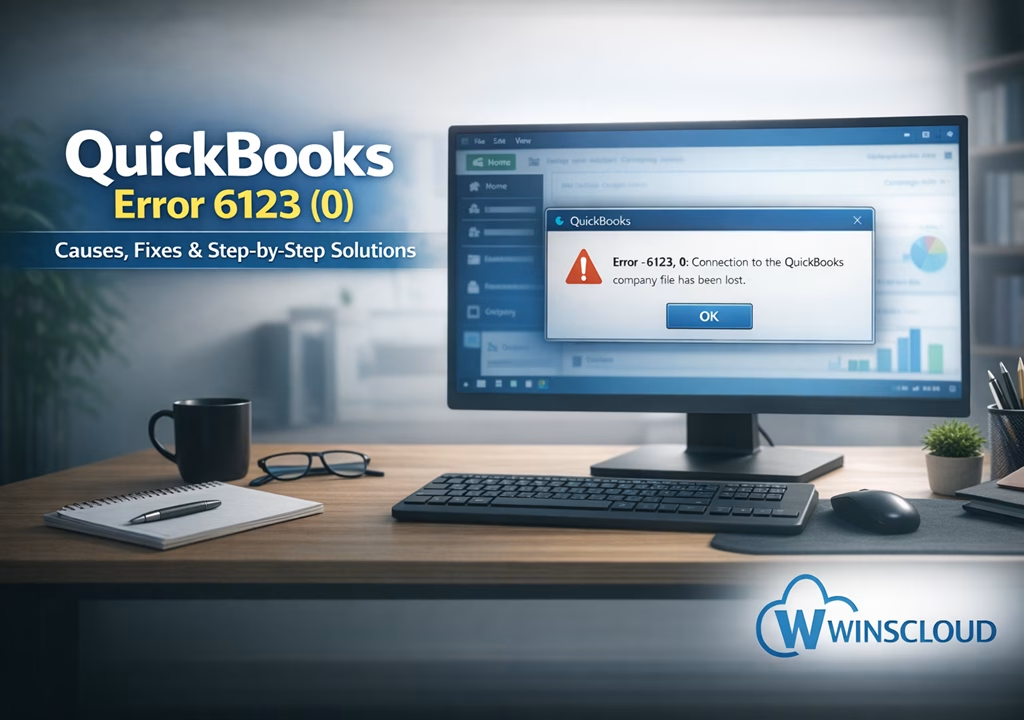
QuickBooks Error 6123 (often displayed as Error -6123, 0) happens when QuickBooks can’t access your company file (.QBW), backup file (.QBB), or portable company file (.QBM). The error message often reads something like:

“Error -6123, 0: Connection to the QuickBooks company file has been lost.”
This can happen on QuickBooks Desktop for Windows and may occur in both single-user and multi-user environments.
Main Causes of QuickBooks Error Code 6123
Understanding the root cause helps you choose the right solution:
1. Corrupted or Damaged Company File (.QBW)
Company files that were interrupted during saving, shutdown, or backup may become corrupted — a common trigger for error 6123.
2. Network Connectivity Problems
Multi-user setups depend on stable network access between the host and client machines. Network interruptions can disconnect QuickBooks while attempting to access the file.
3. Security Software Interference
Firewalls, antivirus tools (e.g., McAfee), and security filters may block QuickBooks services or ports.
4. Hardware Compatibility Issues
QuickBooks Desktop is designed for Intel/AMD architectures. On ARM-based machines (e.g., some Qualcomm/Snapdragon laptops), the software may fail outright, causing error 6123.
5. Wrong File Access Method
Opening the company file directly from Windows Explorer instead of from inside QuickBooks can trigger this error.
How to Fix QuickBooks Error 6123 (Complete Troubleshooting)
We’ve organized these fixes from simplest to more advanced, suitable for admins and IT teams.
1. Open Company File from Within QuickBooks
Ensure you launch QuickBooks first, then open the company file from the File menu. Never double-click the .QBW file from Explorer.
2. Check CPU Architecture
If you’re using QuickBooks Desktop on a laptop with a Snapdragon/ARM processor, the software may not be compatible. Consider:
- Moving the software to an Intel/AMD system
- Using a virtual hosted desktop
- Switching to QuickBooks Online
This hardware check is often not covered by many competitors but is critical for ARM systems.
3. Run QuickBooks Tool Hub & QuickFix My Program
- Close QuickBooks.
- Open QuickBooks Tool Hub.
- Go to Program Problems → QuickFix my Program.
- Wait until the tool finishes.
- Reopen QuickBooks and try your file again.
4. Run QuickBooks File Doctor
This tool is your first line of defense for corrupted files:
- Open QuickBooks Tool Hub.
- Go to Company File Issues → Run QuickBooks File Doctor.
- Select your company file.
- Choose “Check your file.”
- Enter admin credentials.
- Let File Doctor diagnose and repair.
5. Address Firewall & Antivirus Configuration
Security tools may block QuickBooks communication:
- Add exceptions for key QB processes:
- QBDBMgrN.exe
- QBUpdate.exe
- QBFCMonitorService.exe
- Consider temporarily disabling firewall/antivirus to test.
6. Rename Network Data (.ND) and Transaction Log (.TLG) Files
- Navigate to your company file folder.
- Rename companyfile.qbw.nd → companyfile.qbw.nd.old.
- Rename companyfile.qbw.tlg → companyfile.qbw.tlg.old.
- Reopen QuickBooks — it will recreate fresh files.
7. Move Your Company File to Local Storage
If you’re restoring from a network drive or external device, copy the backup to a local hard drive and restore from there.
8. Create a Portable Company File Instead of a .QBB Backup
If the .QBB backup won’t restore:
- Open original file on the original machine.
- Create a portable copy (.QBM).
- Move it to the target machine.
- Restore from the .QBM file.
9. Check & Create a New Windows User
Sometimes user profile corruption blocks QuickBooks access:
- Create a new Windows admin account.
- Log in with that account.
- Try accessing the company file again.
Bonus Tips: Update QuickBooks Desktop to Latest Release
Keeping QuickBooks updated can prevent bugs that contribute to error 6123.
Conclusion
QuickBooks error 6123 (especially QuickBooks error 6123 0) is a file-access issue that can stem from corrupted data, network misconfiguration, security software interference, or even incompatible hardware. The fixes above range from basic usability checks to deeper system-level troubleshooting that most competitors gloss over.
Approach the steps in order, test after each action, and always ensure backups are made before you do major repairs. When all else fails, contacting QuickBooks support with full logs and error screenshots is recommended.
Frequently Asked Questions (FAQs)
Q: How to fix QuickBooks Error Code 6123?
Start by running QuickBooks Tool Hub → QuickFix My Program and File Doctor. Ensure your file is opened from within QuickBooks Desktop and check network/security settings. Rename .ND/.TLG files and restore from local storage if needed.
Q: What is Error Code 6123 0 on QuickBooks Desktop?
It’s a runtime error indicating QuickBooks cannot access the company data file. This typically happens when the file is corrupted, stored on a network/external device, or blocked by security or network issues.
Q: Does QuickBooks File Doctor always fix error 6123?
File Doctor fixes many file-related causes but not all. If the root cause is network, antivirus/firewall interference, or hardware incompatibility, you’ll need the specific fixes covered above.
Q: Can I prevent Error 6123 in the future?
Yes, keep QuickBooks updated, maintain clean backups, avoid opening company files directly from Explorer, ensure proper firewall/antivirus exceptions, and regularly validate your company file health.